
Viewing Transfer Course Equivalencies
Follow the steps below to explore how courses transfer between SUNY institutions.
Transfer To
See how courses at your campus transfer to other campuses.
- Navigate to the “Transfer To” section.
- Select the Source Campus.
- Select the course subject code (prefix) and click Submit.
- Select the course you wish to view from the list and click Submit.
Transfer Back
See how courses at other SUNY campuses transfer to your home campus
- Navigate to the “Transfer Back” section.
- Select the intended campus.
- Select the course subject code (prefix) and click Submit.
- Select the course you wish to view from the list and click Submit.
About the Results Page
After searching for a course and subject, you will be presented with the results page. The results page will provide advanced course equivalency details and guidance.
Page Header and Notices
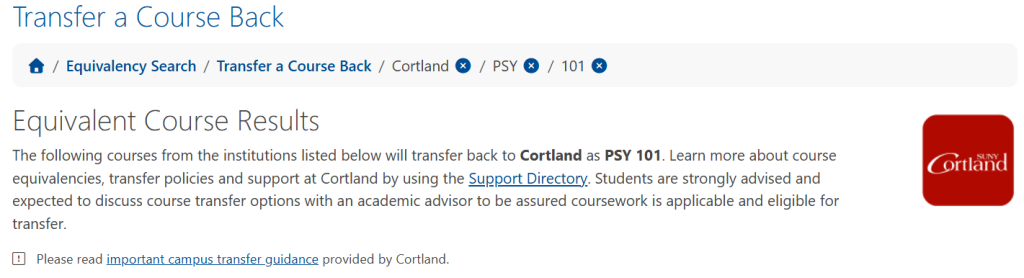
The top of the results page includes a breadcrumb for navigation and a brief description. Within the header, links to campus support pages and additional notices provided by the campus may be provided. On the “Transfer a Course Back” results, the campus logo will be present along with a link to the campus support directory.
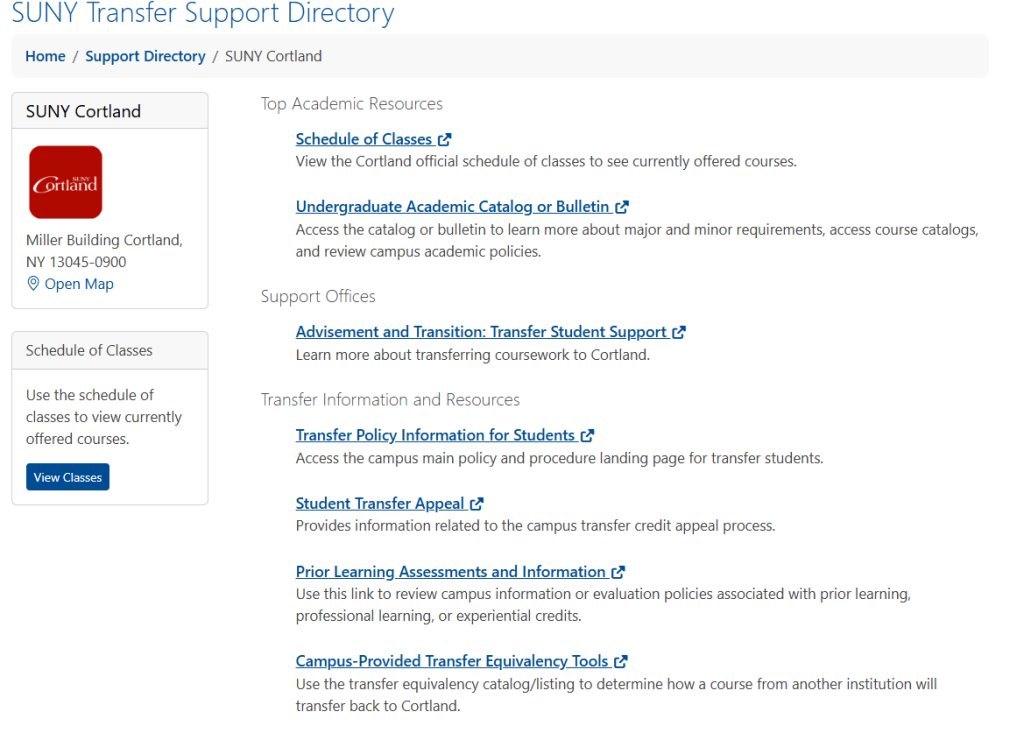
Click the Support Directory link to access important transfer information, resources, and support offices on the selected campus.
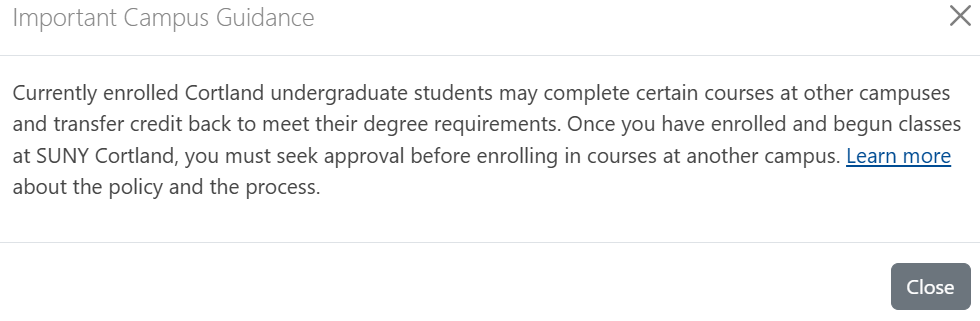
You may also find important campus transfer guidance and/or disclaimers provided by the campus on the results page:
Results Table
The results page has a slightly different look depending on which feature you are using in the course equivalency lookup tool (“Transfer To” or “Transfer Back”).
Transfer To:
When searching for course equivalents, the following fields will populate:
- Campus: indicates the receiving campus where the course will transfer.
- Equivalent: indicates the subject and number of the equivalent course. If the column is highlighted and linked, it indicates the course is listed in the current University-wide catalog. A “GE” symbol indicates the course meets a general education requirement at the receiving campus. Click the link for a course description and additional information.
- Course Title: indicates the course equivalent title at the receiving campus.
- Distance: indicates the distance in miles between the source and receiving campuses.
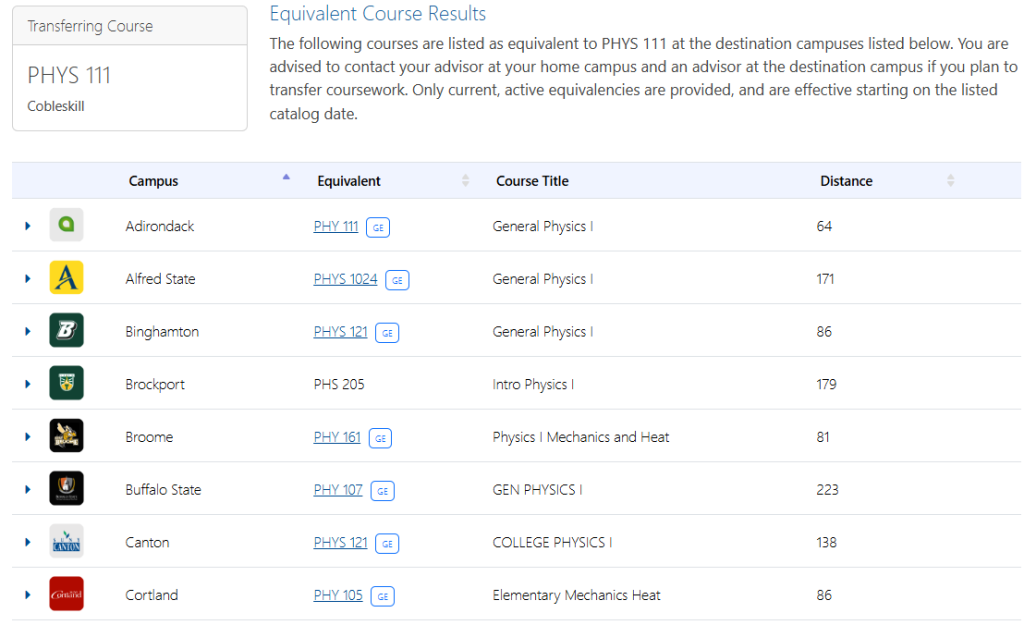
Additional Course Information: Expand the course record by clicking the arrow next to the receiving campus logo. Details will include the record source, the effective starting date of the course equivalency, and credit award guidance.
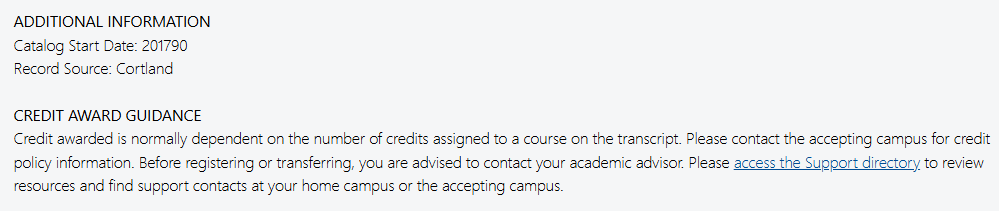
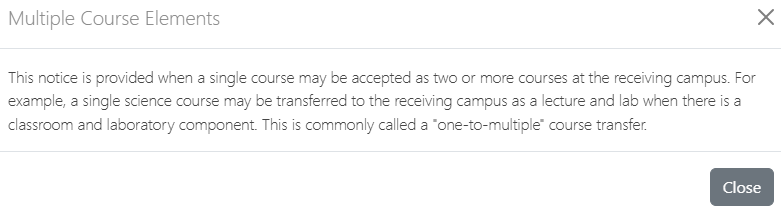
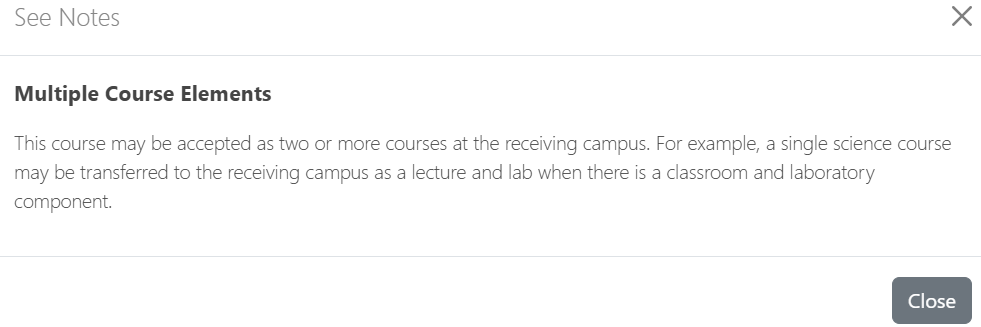
In certain instances, there may be a signpost icon in the column to the right. This column will contain pre-defined notices and notes that pertain to the course equivalency. Notices include information about 1-to-many, many-to-1, and many-to-many course relationships. In some cases, specialized notes may appear to indicate a course is part of a series.

Transfer Back
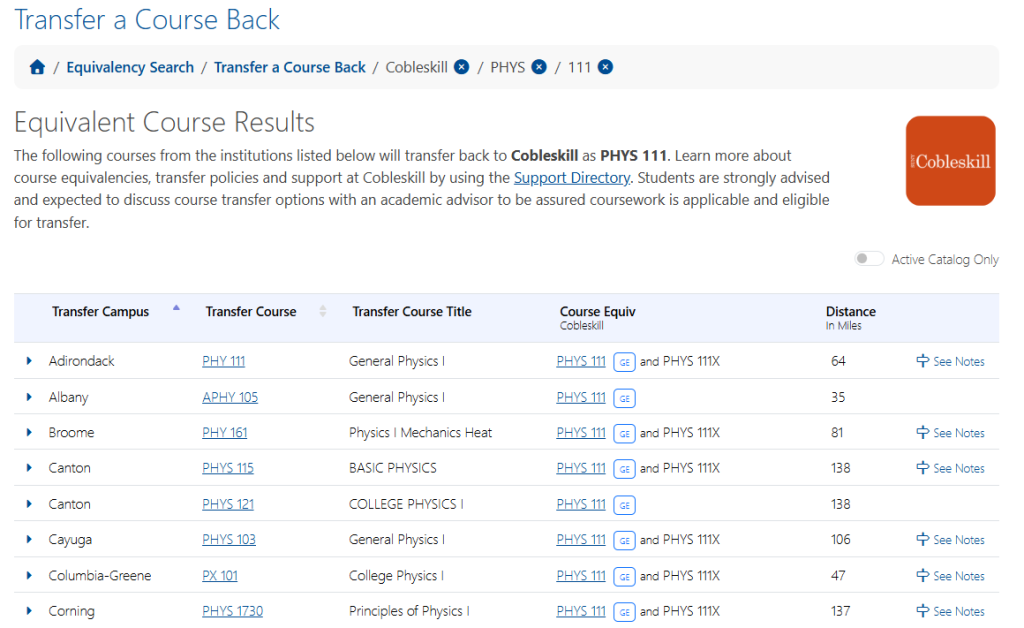
When searching for courses that will transfer back to your institution to meet a particular course requirement, the following fields will populate:
- Transfer Campus: indicates the source campus for the course that is being transferred.
- Transfer Course: indicates the subject and number of the equivalent course. If the column is highlighted and linked, it indicates the course is listed in the current University-wide catalog. Click the link for a course description and additional information.
- Transfer Course Title: indicates the course equivalent title at the source campus.
- Course Equiv: indicates the subject and number of the course you have selected in the equivalency search. If the column is highlighted and linked, it indicates the course is listed in the current University-wide catalog. A “GE” symbol indicates the course meets a general education requirement. Note: If the course is not highlighted and linked, there will be a small information icon to the right of the course indicating that the course does not appear in the current catalog, but is a valid former course equivalent. Click the icon for additional information and guidance from the campus.
- Distance: indicates the distance in miles between the source and receiving campuses.
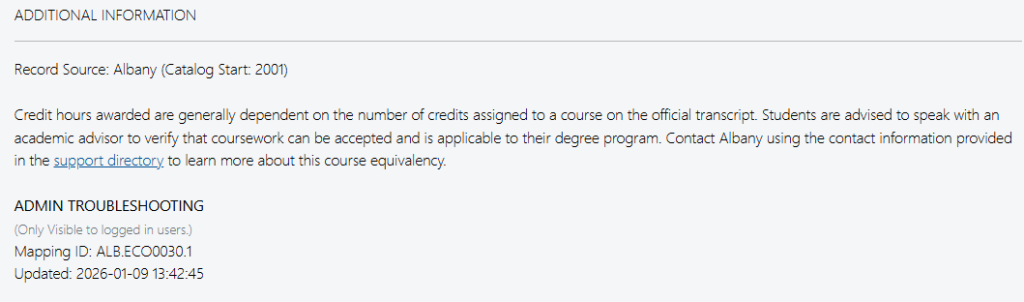
Additional Course Information: Expand the course record by clicking the arrow next to the source campus logo. Details will include the record source, the effective starting date of the course equivalency, credit award guidance, and mapping code (if you are logged in as an editor).
In certain instances, there may be a signpost icon in the column to the right. This column will contain pre-defined notices and notes that pertain to the course equivalency. Notices include information about 1-to-many, many-to-1, and many-to-many course relationships. In some cases, specialized notes may appear to indicate a course is part of a series.


Contact our office for assistance!