
Maintaining Transfer Paths
Campus curriculum managers or advising leads are generally responsible for maintaining SUNY Transfer Path core courses.
Requests for updates to core courses should be submitted online via the SUNY Transfer Navigator (STEP).
Users will need to request a catalog editor account prior to requesting changes.
Click on the links below for step-by-step instructions on how to add, edit, or remove transfer path core courses.
Campus catalog editors can add new Core Course records to the SUNY Transfer Navigator Transfer Path pages by accessing the editor tools and entering the new course directly.
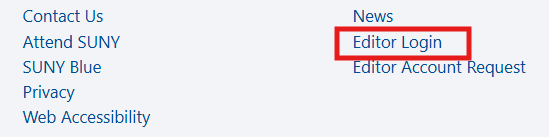
(1) Login to the campus editor dashboard by accessing the Editor Login link in the footer of the website.
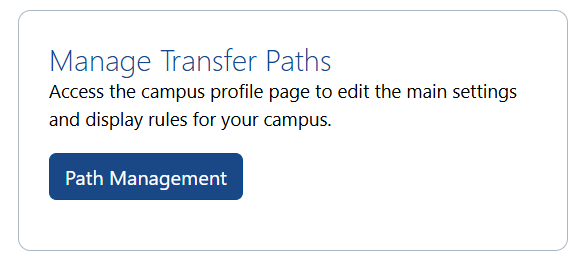
(2) Once logged in, access the Path Management menu item on the Editor Dashboard.
(3) Based on your campus affiliation, you will be able to select a core course for your campus.

(4) Once you are within the core course display, select the [Add a New Course] button.

(5) The critical course information is pre-populated. You do not need to make any changes to the information that is filled in. To add a course, simply include the course subject and number in the editing field.

Campus catalog editors are able to edit existing Core Course records within the SUNY Transfer Navigator Transfer Path tools by accessing the editor tools.
(1) Login to the campus editor dashboard by accessing the link in the footer of the website.
(2) Once logged in, access the Path Management menu item on the Editor Dashboard.
(3) Based on your campus affiliation, you will be able to select a core course.

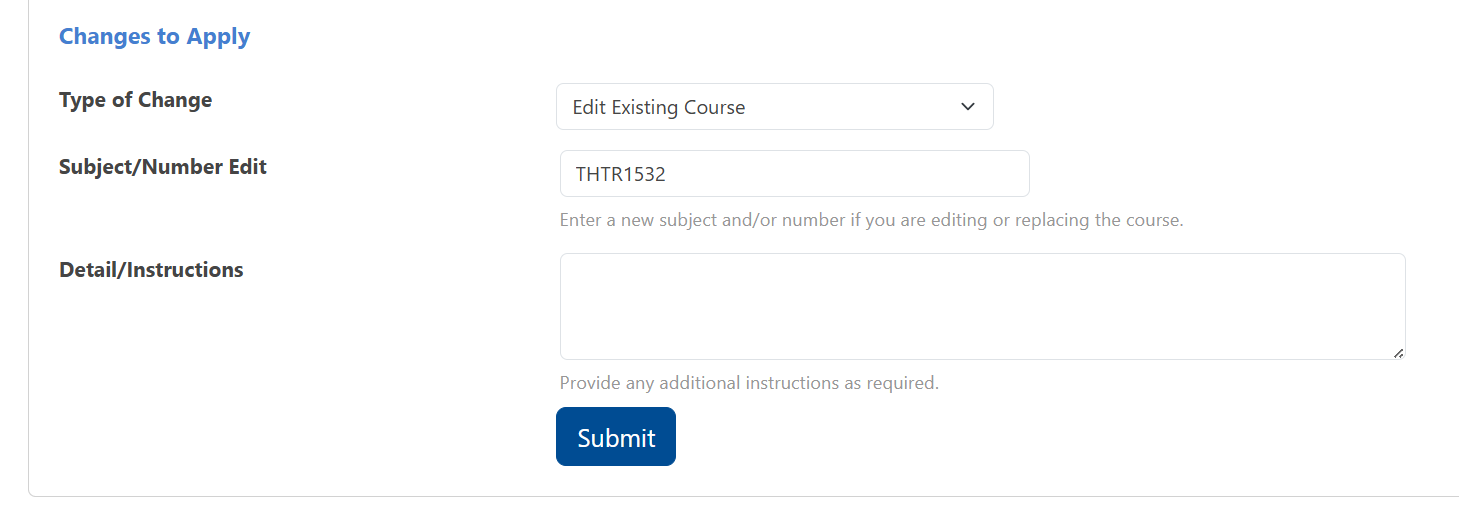
(4) After selecting the course, click on the “Edit”, “Remove”, or “Replace” link and icon next to the course you wish to edit.

- If you are editing the course, select “Edit” and enter the changes to the course number and subject in the Subject/Number Edit field (if applicable) and provide any needed edits in the Details/Instructions field.
- If you are replacing the course, select “Replace” and enter the new course number and subject in the Subject/Number Edit field. Provide any needed edits in the Details/Instructions field (if required).
- If you are removing the course without a replacement, select “Remove” and submit. No extra detail is needed.
For accuracy and quality control, most submissions are manually reviewed before being applied. This process typically takes one business day. If you experience any issues or require an urgent adjustment, please don’t hesitate to contact us.

Contact our office for assistance!